
Step 1:
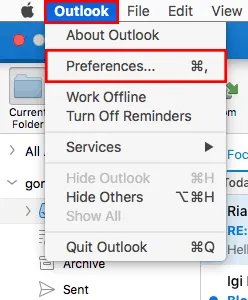
Once you are ready to set up your email signature, open Outlook. On the Outlook menu, click Preferences.
Step 2:
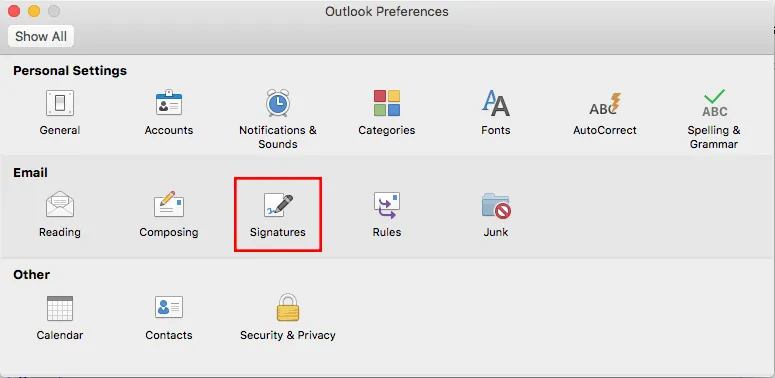
Under the Email section, click Signatures.
Step 3:
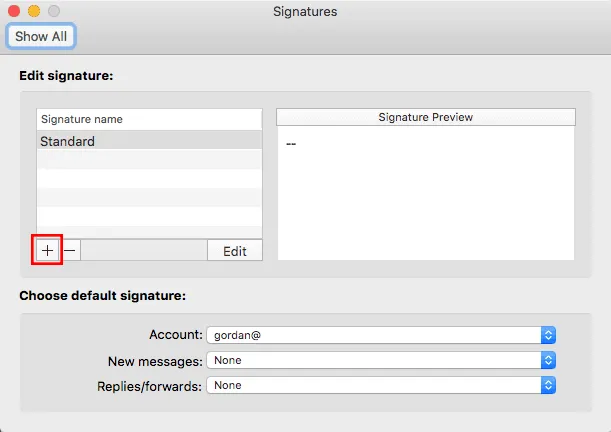
Click the + icon in the lower left corner of the window to add a signature. A new window will open where you can insert your email signature.
Step 4:
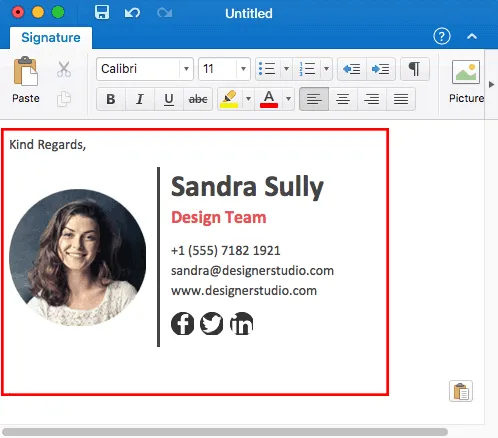
Select everything in the new window (or press Command + A) and delete it. Then, paste your new email signature (or press Command + V) into the box.
Close the window and click “Save” for the pop up prompt.
Step 5:
Double-click Untitled, and then type a name for the signature. This name does not appear in the signature in your messages, it is only for your reference.
At the bottom, select your new signature as the default for new messages and replies/forwards.

Step 6:
Once you are done, close all the windows until you are back at the main screen. Click to create a new email and check out your new signature!
I’ve followed these instructions and my email signature looks correct when I am composing a message but when I look at it in my sent folder it is formatted and does not look correct.
Hi
An employee uses Outlook for Mac. The email signature he has created is not displayed correctly in Outlook. Concerns photo, logo and icons. What can we do?
Best Regards,
Ramona